Google Finance Watchlist Not Updating

When your Google Finance watchlist stops updating, it can be difficult to tell whether the problem is a delayed quote, a broken home-screen widget, an account-sync issue, or a temporary service bug. The right fix depends on where the problem appears. Start with the checks below, and avoid deleting your watchlist before confirming that your saved stocks are still available elsewhere.
1. Check whether the problem is the widget or Google Finance itself
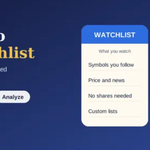
If you use the Finance Watchlist widget in the Google app on Android, open Google Finance directly in a browser as well. Compare the stocks and prices shown in both places. If the website looks correct but the widget is blank or stale, the issue may be limited to the widget rather than your entire watchlist.
Google Finance widget problems were reported by users in 2026, including missing data and an “Unable to display investments” message. That does not prove every similar issue has the same cause, but it is a reason to check the website before changing your saved list. Android Authority reported on these widget issues in April 2026.
2. Confirm that you are signed into the correct Google Account
Watchlists are associated with your Google Account. If you have personal and work accounts, or several accounts signed in on the same device, make sure the account currently open is the one you used to create the list.
- Open Google Finance.
- Check the profile picture in the upper corner.
- Switch to the account you normally use for your watchlist.
- Reload the page and see whether your saved stocks return.
Do not create a replacement list immediately. First check every Google Account you might have used, because a list that appears missing may simply belong to another account.
3. Refresh Google Finance and reopen the app
A page or widget can occasionally display old information. Refresh the Google Finance page, close and reopen the Google app, and check again after a short wait. If you are viewing a market that is closed, remember that the latest displayed price may be the last available quote rather than a live trading price.
Also check the timestamp or market-status label where available. A price that has not changed is not automatically evidence of a technical failure; the security may not have traded, or its market may be closed.
4. Update the Google app and your browser
On Android, open Google Play and check whether an update is available for the Google app and the Google Finance app, if you have installed the dedicated app. Install available updates, then restart the app. On desktop, update your browser and test Google Finance in a new tab.
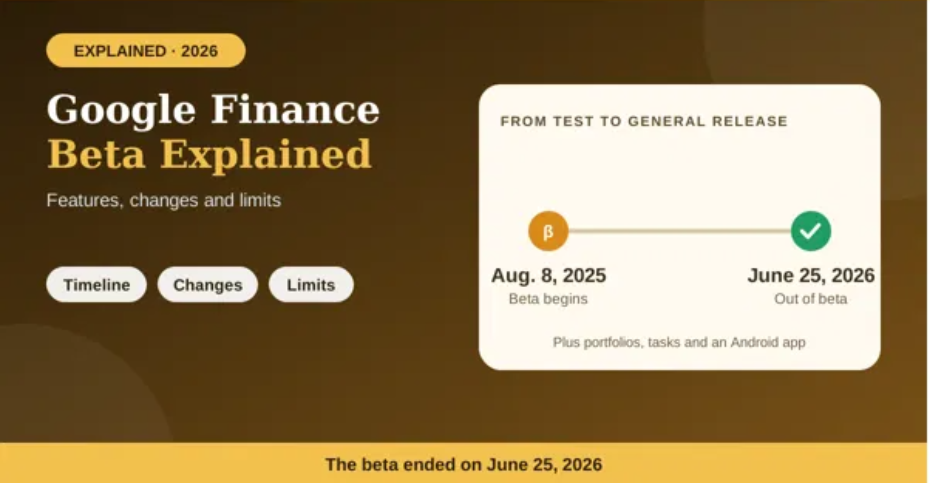
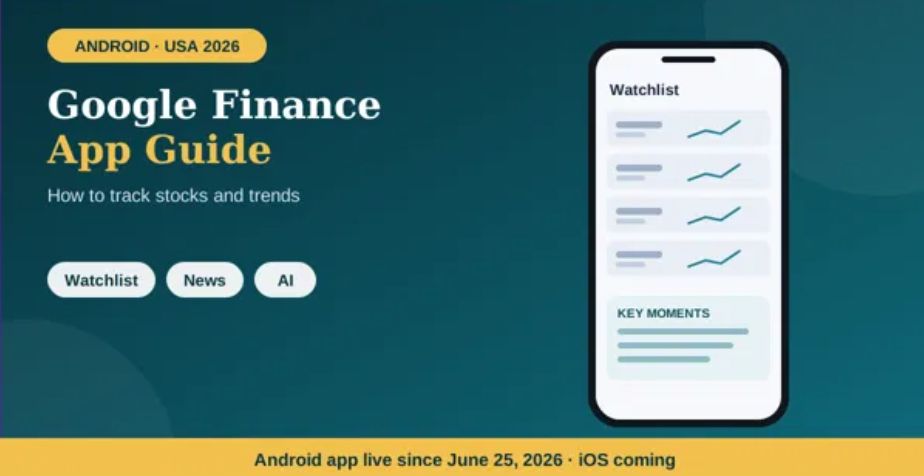
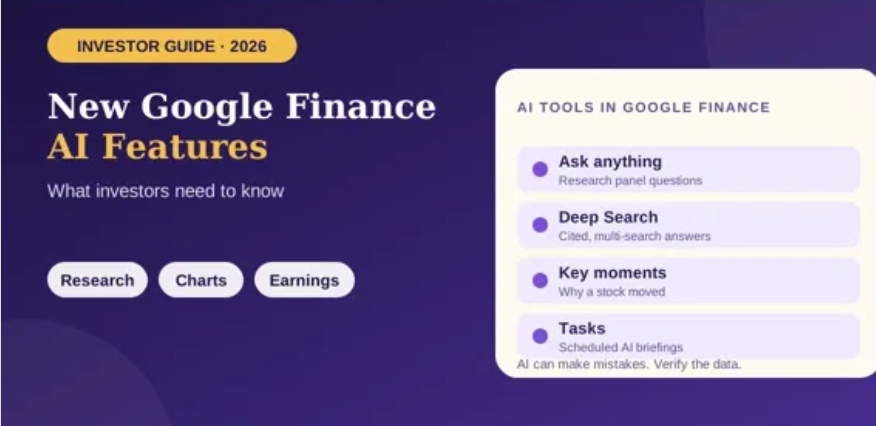
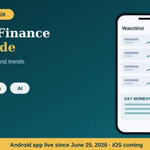
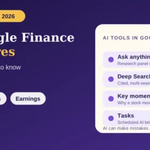
Google introduced a dedicated Google Finance Android app in June 2026. The app includes watchlists, market news, interactive charts and AI research features, while some capabilities remain web-only according to Google’s help documentation. Read Google’s announcement of the Android app and portfolio updates.
5. Test in a private window or another browser
Browser extensions, stored site data or a temporary browser issue can interfere with a page. Open Google Finance in an incognito or private window, sign in, and check the watchlist. You can also test another browser or another device.
If the list works in a private window, temporarily disable extensions that affect scripts, privacy or page content, then test again. If you clear cookies or site data, be aware that you may be signed out of websites. Avoid clearing data until you have confirmed that you know how to sign back in.
6. Check the watchlist on another device before changing saved data
Open the same Google Account on another device and compare the list. If your stocks appear there, your saved list may be intact while the original device has a display or sync problem. If the list is missing everywhere, it may be a broader account or service issue.
Do not assume that removing and re-adding every stock is the best solution. First capture a screenshot or make a private note of the tickers you follow. If you track purchase prices or other personal notes, preserve those separately before attempting any destructive changes.
7. Report the issue to Google
If the problem continues across browsers and devices, use Google Finance’s Send feedback option. Describe what is missing, when the issue began, which device and browser you use, and what troubleshooting steps you already tried. Add a screenshot if it does not reveal private financial information.
Google’s help page explains that feedback can be sent from the bottom of Google Finance and may include a screenshot. Google may not reply individually to every report, but the report helps document the issue. See Google’s current Google Finance help guidance.
Why might a Google Finance watchlist stop updating?
Common possibilities include the wrong Google Account, a widget-specific display problem, browser or app data, a temporary service issue, or confusion between a live market quote and the last available price. These are troubleshooting possibilities, not a guarantee of the cause. Google’s interface and available features can change as updates roll out.
Frequently asked questions
Will clearing the cache delete my watchlist?
Clearing browser cache is different from deleting a saved watchlist, but clearing cookies or app data can sign you out or reset local settings. Check that you know the correct Google Account before doing it.
Why does the widget show different stocks from the website?
The widget may be failing to refresh or display the list correctly. Compare the website and widget, update the Google app, and report the issue if it persists.
Does a flat stock price mean Google Finance is broken?
No. The market may be closed, the quote may be delayed, or the security may not have changed during the displayed interval. Check the market status and timestamp before diagnosing a fault.
Final thoughts
Start with the least disruptive checks: verify your account, compare the widget with the website, refresh, update the app and test another browser or device. If the list is missing everywhere, report the issue and preserve any information you cannot easily recreate. These steps help narrow down the cause without risking unnecessary changes to your saved watchlist.